Active@ UNDELETE Ver 2.0
See documentation for latest version
The Component Object Model (COM) can make distributed applications secure without any security-specific coding or design in either the client or the component. Just as the COM programming model hides a component's location, it also hides the security requirements of a component. The same binary code that works in a single-machine environment, in which security may be of no concern, can be used securely in a distributed environment.
To configure DCOM you can use registry editor or OLE View utility to edit registry settings directly, or DCOMCNFG configuration utility to edit them in graphical user interface.
DCOMCNFG is a utility you can use to configure various COM-specific settings in the registry. This configuration utility, dcomcnfg.exe, is included in the Microsoft Windows NT® operating system and is used to configure applications to use COM. If you do not have it installed, you can download and install it from Microsoft Web Site. The dcomcnfg.exe utility is not added to the Start menu or any groups during installation of Windows. An administrator must start it from the Run command on the Start menu.
DCOMCONFG must be used to configure an application's COM properties before the application can use COM to communicate over the network. The DCOMCONFG utility can be used to:
Both the computers that are running the client and the server applications must be configured for a distributed environment with the DCOMCONFG utility:
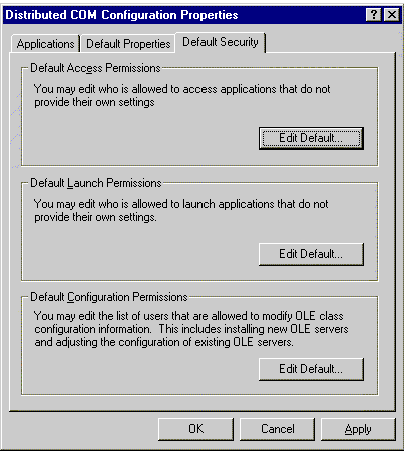
When DCOMCNFG starts, it displays the Distributed COM Configuration Properties dialog box. This dialog box has three tabs: Default Security, Default Properties, and Applications.
You can use the Default Security tab to specify default permissions for objects on the system. This tab has three sections: Access, Launch, and Configuration. To change a section's defaults, click the corresponding Edit Default button. These default security settings are stored in the registry under HKEY_LOCAL_MACHINE\Software\Microsoft\OLE.
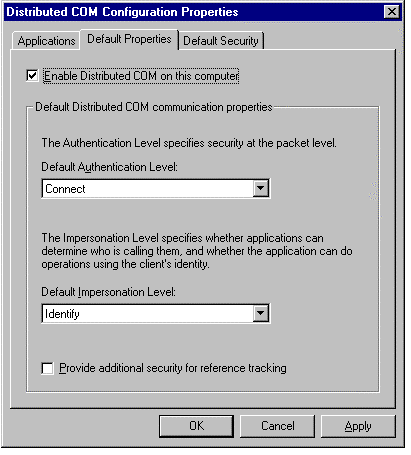
On the Default Properties tab, you must select the Enable Distributed COM on This Computer check box if you want clients on other machines to access COM objects running on this machine. Selecting this option sets the HKEY_LOCAL_MACHINE\Software\Microsoft\OLE\EnableDCOM value to Y.
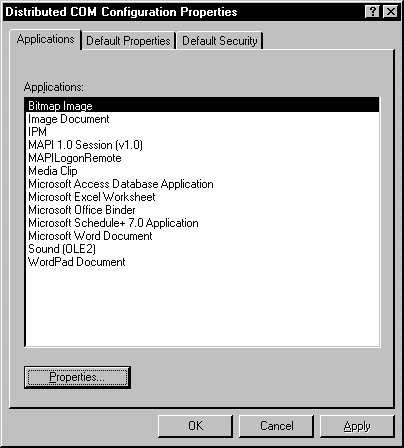
You can change the settings for a particular object from the Applications tab. To do so, you select the application from the list and click the Properties button. This action displays the Object Properties dialog box for the selected application.
The Object Properties dialog box has four tabs:
When you want all of the applications on one computer that do not provide their own security to share the same default security settings, you would set security on a machine-wide basis. Using Dcomcnfg.exe makes it easy to set default values in the registry that apply to all applications on a machine.
It is important to understand that if the client or server explicitly sets processwide security, the default settings in the registry will be ignored. Also, if you use Dcomcnfg.exe to specify security settings for a particular process, the default machine settings are overridden by the settings for the process.
When enabling machine-wide security, you must set the authentication level to a value other than None and you must set launch and access permissions. You have the option of setting the default impersonation level, and you also can enable reference tracking. The following topics in this section provide step-by-step procedures:
The authentication level is used to tell COM at what level you want the client to be authenticated. These levels offer various levels of protection, from no protection to full encryption. To enable security for a machine, you need to choose an authentication level other than None. You can choose such a setting, using Dcomcnfg.exe, by completing the following steps.
To set the authentication level on a machine-wide basis:
The launch permissions you set with Dcomcnfg.exe determine a list of users, each of which is explicitly granted or denied permission to launch any server that does not provide its own launch-permission settings. When setting launch permissions, you can add or remove one or more users or groups from this list. For each user that you add, you must specify whether the user is being granted or denied launch permission.
To set launch permissions for a machine:
Dcomcnfg.exe allows you to set access permissions to control the list of users who are granted or denied access to the methods of those servers that do not provide their own access permissions. You can add users or groups to the list, specifying whether access permission is being granted or denied. You can also remove users from the list.
When setting access permissions, you must ensure that SYSTEM is included in the list of users that are granted access. If you have granted access permissions to Everyone, SYSTEM is included implicitly.
The process of setting access permissions for a machine is similar to setting launch permissions. The following steps should be taken.
To set access permissions for a machine:
The impersonation level, set by the client, determines the amount of authority given to the server to act on the client's behalf. For example, when the client has set its impersonation level to delegate, the server can access local and remote resources as the client, and the server can cloak over multiple machine boundaries if the cloaking capability is set.
To set the impersonation level for a machine:
When you enable reference tracking, you are asking COM to do additional security checks and to keep track of information that will keep objects from being released too early. Keep in mind that these additional checks are expensive. Use the following steps to enable or disable reference tracking.
To set reference tracking for a machine:
When a computer is part of a network, the DCOM wire protocol enables COM objects on that computer to communicate with COM objects on other computers. You can disable DCOM for a particular computer, but doing so will disable all communication between objects on that computer and objects on other computers.
Disabling DCOM on a computer has no effect on local COM objects. COM still looks for launch permissions that you have specified. If no launch permissions have been specified, default launch permissions are used. Even if you disable DCOM, if a user has physical access to the computer, they could launch a server on the computer unless you set launch permissions not to allow it.
WarningIf you disable DCOM on a remote computer, you will not be able to remotely access that computer afterwards to re-enable DCOM. To re-enable DCOM, you will need physical access to that computer.
To manually enable (or disable) DCOM for a computer:
You might want to enable security for a particular application if an application has security needs that are different from those required by other applications on the machine. For instance, you might decide to use machine-wide settings for your applications that require a low level of security while setting a higher level of security for a particular application.
However, security settings in the registry that apply to a particular application are sometimes not used. For example, the application-wide settings that you set in the registry using Dcomcnfg.exe will be overridden if a client sets security explicitly for a particular interface proxy.
When enabling security for an application, several settings may need to be modified. These include authentication level, location, launch permissions, access permissions, and identity. For step-by-step procedures, see the following topics in this section:
To enable security for an application, you must set an authentication level other than None. The authentication level tells COM how much authentication protection is required, and it can range from authenticating the client at the first method call to encrypting parameter states fully.
To set an application's authentication level:
The location you set for your application determines the computer on which the application will run. You can choose to run your application on the machine where the data is located, on the machine you use to set the location, or on a specified machine.
To set an application's location:
With Dcomcnfg.exe, you can set launch permissions to control the list of users who are granted or denied permission to launch a particular server. You can add users or groups to the list, specifying whether access permission is being granted or denied. You can also remove users from the list.
To set launch permissions for an application:
With Dcomcnfg.exe, you can control the list of users who are granted or denied access to the methods of a particular server by setting access permissions. You can add users or groups to the list, specifying whether access permission is being granted or denied. You can also remove users from the list.
When setting access permissions, you must ensure that SYSTEM is included in the list of users that are granted access. If you have granted access permissions to Everyone, SYSTEM is included implicitly.
The process of setting access permissions for an application is similar to setting launch permissions. The steps are as follows.
To set access permissions for an application:
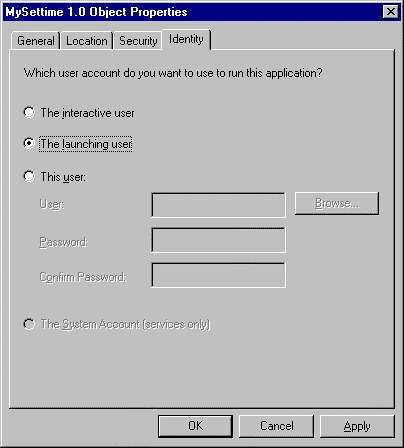
An application's identity is the account that is used to run the application. The identity can be that of the user that is currently logged on (the interactive user), the user account of the client process that launched the server, a specified user, or a service. You can use Dcomcnfg.exe to choose one of these identities for the application.
To set identity for an application:
You would browse the user database in Dcomcnfg.exe when you need to find the fully qualified user name for a particular user. For instance, you can browse the user database to locate a user that you want to add for access or launch permissions.
To browse the user database:
If you have a network of machines running Microsoft® Windows® 95 or Microsoft Windows 98, it is important to know whether there is a Microsoft Windows NT® or Microsoft Windows 2000 domain in the network. If there is a Windows NT or Windows 2000 domain, both Windows 95 and Windows 98 can provide authentication and authorization using a pass-through security mechanism. However, if there is no Windows NT or Windows 2000 domain in the network, only unsecure calls can be made.
Because the default behavior of COM is to try to make a secure call and then default to an unsecure call, you need to change COM's default behavior before a COM client can successfully call a COM server over a Windows 95 and Windows 98-only network. To change this behavior, the following tasks must be completed:
When a Windows 95/98 COM server is used to serve objects to remote clients, make sure to:
The authentication level is negotiated as follows: If you have a Windows 95/98 client with authentication level Connect and a Windows NT server object with authentication level Encrypt, COM will try to use Encrypt for calls in both directions. Since Windows 95/98 cannot receive calls at Encrypt, the Windows NT computer cannot call the Windows 95/98 machine. Thus both the client and server have to set the authentication level to the lowest value allowable for any call in any direction.
Similarly, if you have two processes, one with a logon token and the other with an impersonation token, and you set the authentication level to none in the second, it still won't be able to call the first if its authentication level is not none.

