Active@ UNDELETE Ver 5.0
See documentation for latest version
Drag and drop recovery view
This view is used to organize the list of files and folders to recover by using drag and drop of necessary files or folders from Explorer Panes. To use this view, you can follow this common procedure:
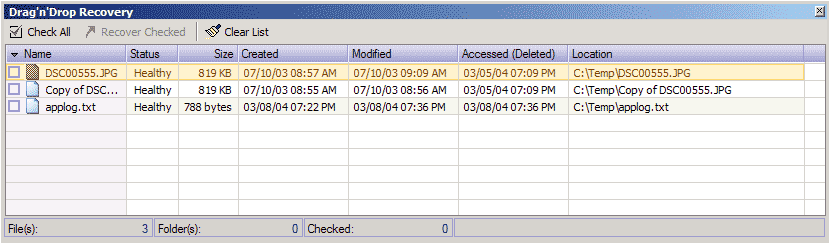
- Drag and Drop files and folders to this view to create list of potential elements prepared to recover. You will be able to see the recovery status of these files or folders.
- After list completes, you can set check mark for the files or folders wish to recover. It can done by:
- Clicking on check box on left side each list item
- Double-click on each item you wish to be checked (unchecked)
- Select as many list items as you want and press "Space" key to set (clear) check mark on all selected items
- Click view toolbar button to initiate recovery process for checked files or folders.
- After recovery process starts, the Log View will be automatically activated.
- After recovery completes, you can repeat recovery process setting different options with files or folders you selected in "Drag'n'Drop Recovery" view.
Toolbar buttons and context menu commands
- Check All
- Apply (clear) check marks for all items in the list for further bulk operations.
- Recovery Checked
- This command, initiate recover process for all checked items in list.
- Clear
- Clears list

