Active@ UNDELETE Ver 5.0
See documentation for latest version
To start the application from the Windows click Start button, click Programs > LSoft Tech.
Click Remote Recovery Agent from the programs menu.
When it starts, the window shown below appears:
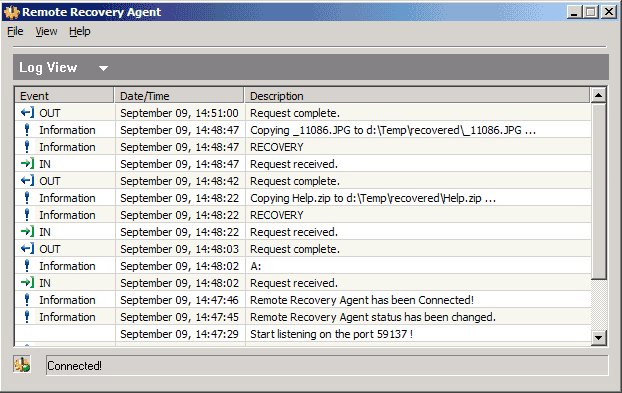
In this Log View transaction information shown with brief description.
The Active@ Remote Recovery Agent window can be minimized to small icon in 'System Tray' as shown:
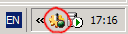
There are different states of Active@ Remote Recovery Agents presented by SysTray icon:
 |
Application in Disabled state. It can not receive and response on any request from Active@ UNDELETE Client. |
 |
Application in Enabled state. It ready to receive and response on any request from Active@ UNDELETE Client. |
 |
Application in Connected state. It currently on line with Recovery Toolkit Client and processing scanning, recovery and other commands from the client. |
 |
This icon indicates, that Active@ Remote Recovery Agent processing requests from Active@ UNDELETE Client. Usually it flashes also when change the status. |
To let Active@ Remote Recovery Agent allow Active@ UNDELETE process remote Data Recovery the Agent should be set to 'Enable' mode. It can be done in either ways:
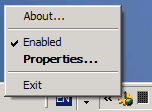
By right click on this icon, gives an access to context menu, where you can choose to restore window, Enable\Disable or Exit application.