Active@ UNDELETE Ver 5.0
See documentation for latest version
Scan Physical Devices for Partitions and Drives
Physical Devices can be scanned for partitions and drives. There are two types of
devices scanning: Advanced Device Scan and Low Level Scan distinguished by scanning algorithms.
To scan device using one of these methods, you can do follows:
- Select Physical Device tree by clicking on Physical Devices tab in Active@ UNDELETE Explorer.
- Select physical device item in tree you wish to scan. If device was not scanned before, one of two situations may occur:
- Dialog Device Scan Modes appear, that allow you select one of the device scan methods.
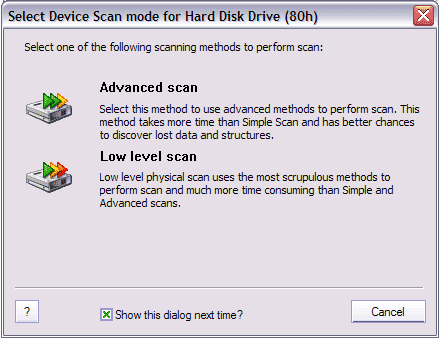
- Click on Advanced Scan or Low Level Scan button to start scanning by using desired method or click Cancel to abort scanning.
- If the check mark on dialog Advanced Scan Methods once was cleared, than default scan method will be selected to perform device scan.
- Otherwise, to perform Device scan you can do one of the follows:
- Click Actions > Scan... and then one of the options: Advanced Scan or Low Level Scan in command toolbar.
- Click Scan button in toolbar to perform selected scan. To change selection of Scan button use drop-down arrow on right side of the button.
- Right-click any device item in Active@ UNDELETE Explorer. Click Device Scan and than on of the options: Advanced Scan or Low Level Scan from the context menu.
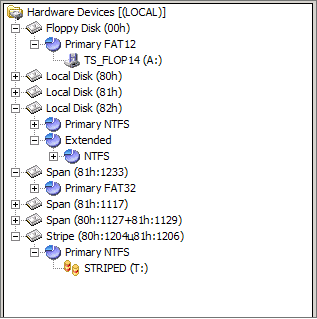
- After Device scan complete, you will be able to browse device and see detailed information about partitions and drives found.
For logical drives items in device tree, all features applicable as for drives items in Logical Drives Tree e.g. Scan, Search Recovery and so on.

