In most of scenarios, to restore deleted partition you need to do following:
You cannot restore partition if it’s overlapped existing partitions on a disk.
Only four primary partitions can exist on a same Hard Disk – you cannot restore partition if this amount exceeds.
If partition was deleted the space on disk becomes “Unallocated”. You can scan this space to find deleted partition and retrieve data from it or even restore it back.
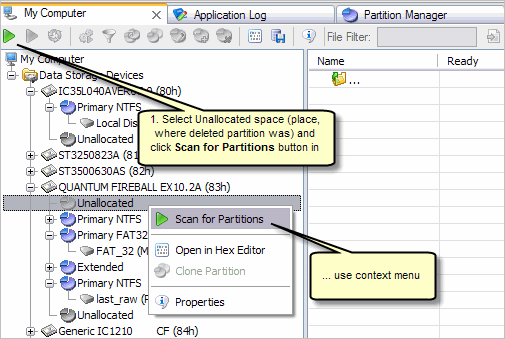
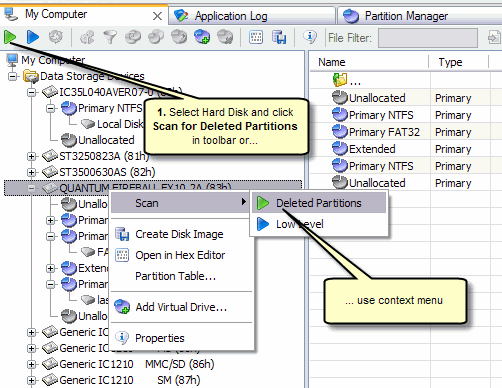
You can try to find deleted partition even if this partition has been overwritten by another partition and still have a good chances to recover your data from it. In this case, you have to select Hard Disk to scan.
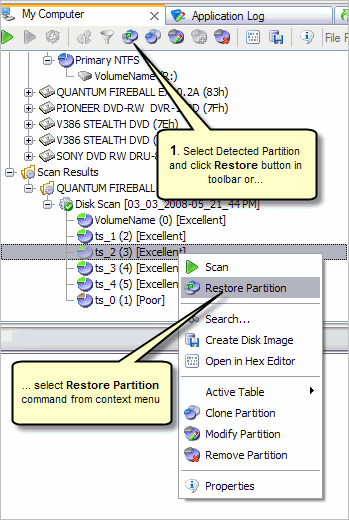
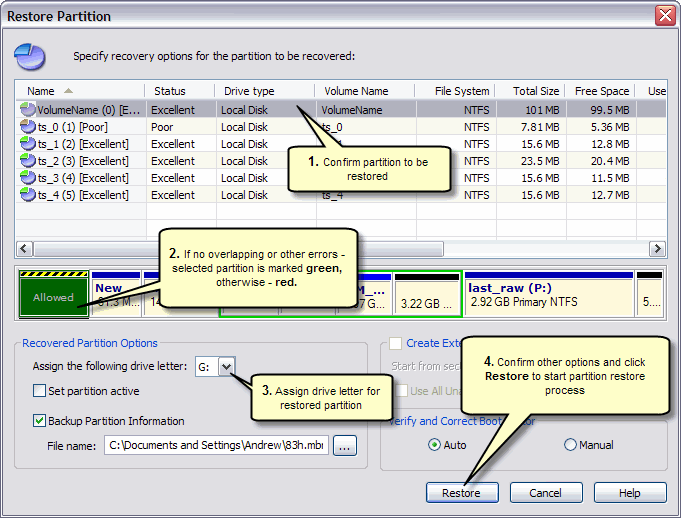
Restored partition and corresponded Logical Drive will appear in Recovery Explorer as well as in Windows File Explorer under drive letter you have assigned.

