Active@ UNDELETE ver. 2
See documentation for latest version
 button on the toolbar, or right-click the drive or folder and click Search in the context menu.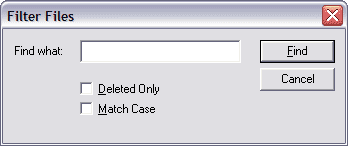
Examples:

*          - All files on the drive or in the folder
*.TXT      - All files with "TXT" extension
My*.*      - All files starting with "My"
MyFile.txt - Search for the file named "MyFile.txt"
The search pattern is the same pattern recognized when searching in Microsoft Windows.
The asterisk symbol (*) in the pattern means that at this place can be zero or any number of any symbols
The question mark symbol (?) in the pattern means that at this place can be any single symbol.
Deleted files and folders differ from the non-deleted items by icons:
 or
or  Grey icon means that deleted file or folder has a good chance of recovery.
 or
or  Black icon means that deleted file or folder has a poor chance of recovery because it has been overwritten (or may be partially overwritten) on the disk.

