Active@ UNDELETE Ver 2.0
See documentation for latest version
This chapter describes the features and functions of Active@ UNDELETE.
Active@ UNDELETE is a powerful software utility, designed to restore files and directories that have been accidentally deleted. This chapter covers the following topics:
When a file is written to a hard drive, a record of that file is kept in the Root Tableor Master File Table (MFT). As well, the addresses of file clusters are given labels, indicating the clusters are occupied. When an existing file is deleted, successful data recovery depends a good deal on the condition of the file clusters. When a file is deleted from a drive location, its clusters are labeled as unoccupied and the file entry in Root Table or MFT indicates the file has been deleted. For more detail on file clusters, see Sectors and Clusters in the following chapter.
After a file has been deleted, the condition of the file clusters depends on whether or not other files have been written to the same drive. There is a chance that the file-writing process may have allocated these clusters and Root Table entries to be overwritten. To recover files successfully, it is strongly recommended to perform the recovery operation immediately after discovering that there are files that have been removed by accident.
After the program has been installed, use Microsoft Start > Programs to open Active@ UNDELETE. When opened, the left pane of the main window holds a list of drives and folders available for scanning. If it is closed, click Active@ UNDELETE folder to see this list.
Click a drive or folder node. Active@ UNDELETE scans the Root Table or Master File Table and displays information about the disk contents, including recently-deleted files.
The figure below is similar to the main screen:
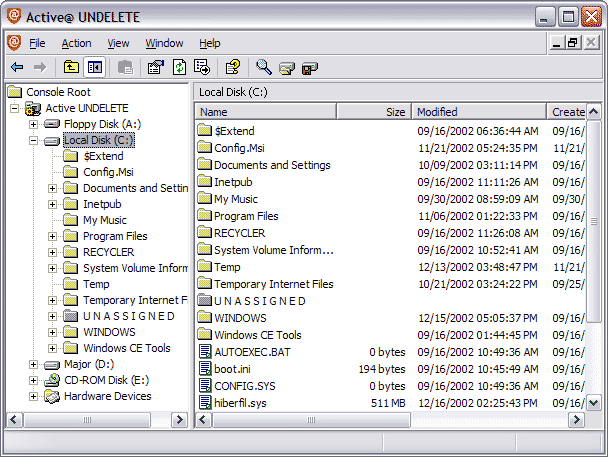
If there are many folders and you are not sure where to look for deleted files, Active@ UNDELETE has a filter system that allows you to search for files by name.
The table below describes the icons that appear in the data section of the screen.
| Icon | Description | Icon | Description |
 |
Regular folders |  |
Deleted folder |
 |
Regular file |  |
Deleted file |
A deleted file or folder that appears as a black icon indicates that deleted file or folder has a poor chance at being recovered. This may be because it has been partially overwritten or completely overwritten.

