Active@ UNDELETE Ver 5.0
See documentation for latest version
Advanced search
Advanced Search is using to specify different types of searching criteria, such as:
- Registered File type
- File Date
- File Size and
- File Attribute
You can open Advances Search dialog by clicking Advanced Search button from Search Bar.
After one of this manipulations, the Advances Search dialog box will appear.
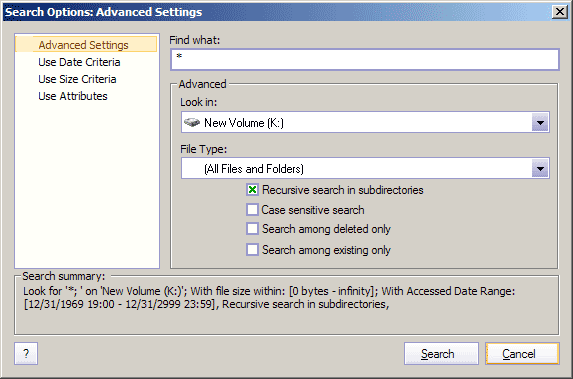
The Advances Search dialog box provides many standard search options to help you increase the accuracy of your search.
Values
- Find what
- Enter the text, along with wildcards characters or regular expressions, for which you intend to search.
Search pattern is the same pattern that you use when searching in Windows.
Symbol * in pattern means that at this place can be zero or any number of any symbols
Examples:
 *          - all files on the drive or in the folder
          *.TXT      - all files with "TXT" extension
          My*.*      - all files starting with "My"
          MyFile.txt - search for the file named "MyFile.txt"
Other search options combined in the groups: Use Size Criteria, Use Date Criteria
and Advanced Options. To select one of them, click on item in the list. If any of the group is modified (not default) the green check mark appears on the left side of the item in the list. To set group values to default state - Double-click on that item.
Final search criteria, appears at the bottom of Advanced Search dialog and gives detailed information about all options selected.
To initiate Search with options selected, press Search button. If any files or folders can be found with specified search options, they will be appeared in Search View. If searched drive(s), was not scanned before, the drive will be scanned before searching.
To leave dialog without starting the search process press Search button.
Advanced Options
Here the following options can be set:
Values
- File Type
- Specifies the file extensions for the type of files associated with certain
application to search in the directories listed in the Look in drop-down list. If
no
extensions are listed, all of the files in the directories listed in the Look in
drop-down list are searched.
- Look in
- Specifies the drives or folder to search by selecting a pre-defined scope from the
drop-down list.
- Recurs Search in subdirectories
- Search including sub folders.
- Case Match
- Searches only for occurrences that match the combination of uppercase and lowercase
characters you enter in the Find what box.
- Deleted Only
- The search will be performed for deleted files and folders only.
- Existing Only
- The search will be applied for existing files and only and all deleted files will
be
ignored.
Use Date Criteria
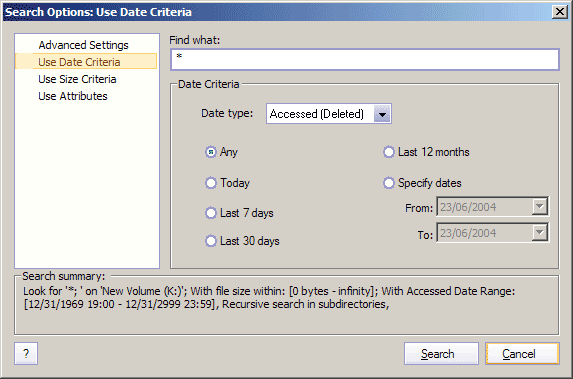
Here one of the following options can be selected:
Values
- Date type
- Either Deleted Date, Created Date or Modified Date can be
selected from drop-down list specifying to which the date range options are applies;
- Any
- when Size Criteria is ignored.
- Today
- Specify date range in 24 h back from this moment.
- Last 7 days
- Specify date range in 7 days back from this moment.
- Last 30 days
- Specify date range in 30 days back from this moment.
- Last 12 months
- Specify date range in 365 days back from this moment.
- Custom, by selecting the date range by using Data Picking controls.
- By using Date picking controls, you can specify appropriate date range to narrow your
search.
Use Size Criteria
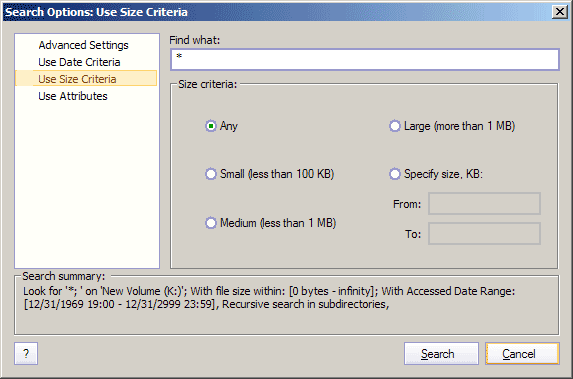
One this option page, one of the following searching file size options can be selected:
Values
- Any
- when Size Criteria is ignored.
- Small (Less than 100KB)
- Set the file size range from zero to 100Kb.
- Medium (Less than 1MB)
- Set the file size range from zero to 1Mb.
- Large (More than 1 Mb)
- Set the file size range from 1MB to unlimited.
- Specify size, in Kb
- Use text fields, to specify file size boundaries, to narrow your search.
Use Attributes Criteria
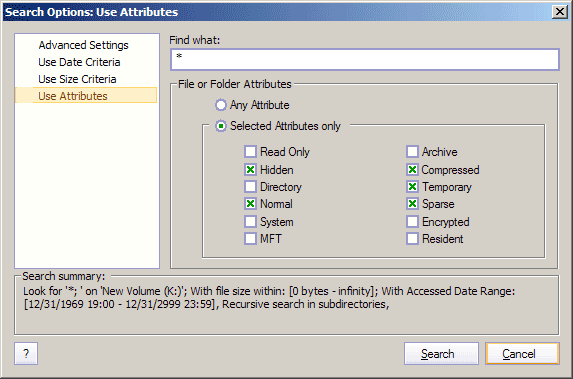
Here searched file attributes can be specified as a search criteria, such us:
- Read Only
- Hidden
- Directory
- Normal
- System
- MFT
- Archive
- Compressed
- Encrypted
- Temporary
- Sparse
- Resident

