Active @UNDELETE Ver 2.0
See documentation for latest version
Advanced file recovery features can be helpful if standard procedures are not successful. If successful, the Undelete Wizard can help recover a file that has been partially overwritten with the ability to preview file contents and manipulate file cluster chain contents.
Being able to see and adjust contents of clusters composing the file will help recovering only files in a readable format, such as
*.txt, *.log, *.rtf ...
Follow these steps to use the Undelete Wizard:
1. From the Active@ UNDELETE main screen, find and select a deleted file.
2. Start the Undelete Wizard by
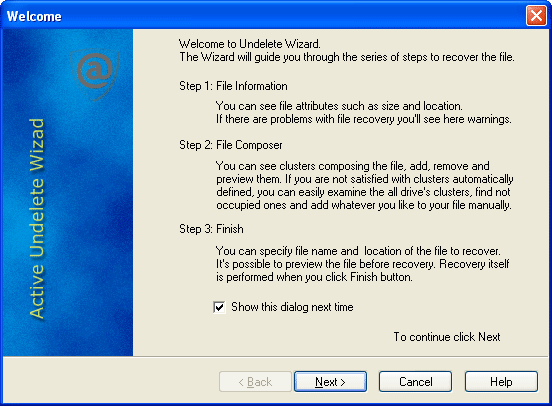
3. Read the brief procedure description on the Undelete Wizard Welcome screen and clear the Show this dialog next time checkbox if you do not want to see welcome screen next time.
4. Click Next to follow the wizard steps.
5. The Undelete Wizard steps you through read-only File Information, the interactive File Composer screen, and the Finish screen.
6. In the File Composer screen, Undelete Wizard chooses a cluster chain for you. On the left is a list of all available clusters. Clusters occupied by other files are colored black Unoccupied, or free clusters are colored red. Clusters that appear grey are those that have been selected for this recovery.
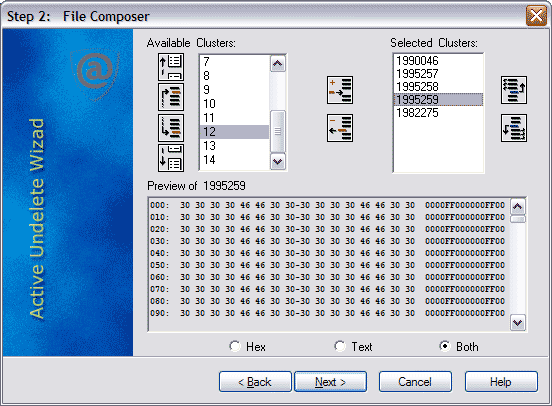
At the right side there is a list of clusters composing file body. These clusters will be recovered after the wizard Finish screen. Click any cluster in either list box to display its contents in the Preview pane below. Image buttons help manipulate the order of the clusters in the chain.
7. When all output parameters have been defined, click Finish to complete the recovery process.

